Battery icon next to a laptop USB port: what features does it indicate?
- A battery icon often indicates additional power features, but its meaning depends on the manufacturer.
- USB Power Delivery can regulate power delivery, and the latest version supports up to 240 W.
- Charging devices while the laptop is off drains its battery, if this feature is supported.
An icon indicating power capabilities
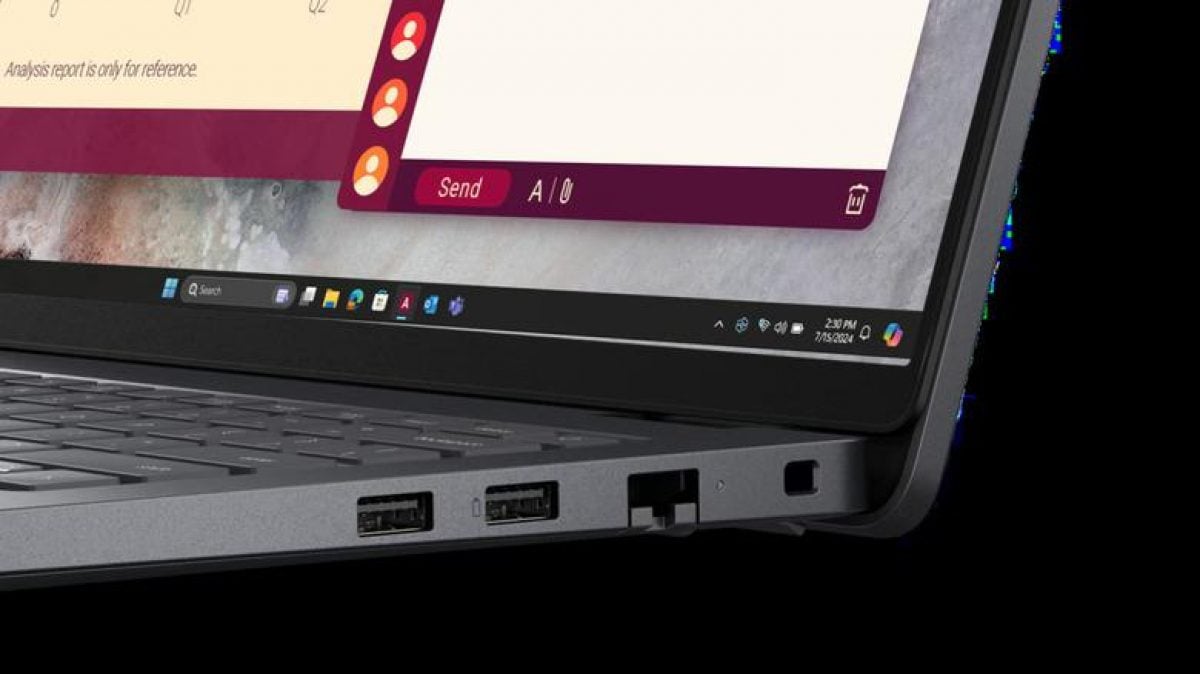
USB ports on a laptop may look the same but support different features. Their capabilities are sometimes indicated by small markings next to the ports, such as a lightning bolt, the letters SS, Thunderbolt symbols, or a battery icon. The latter is mainly associated with powering connected devices, but it does not reveal the port’s full specifications on its own. So you can’t reliably determine charging speed or how the port behaves when the computer is off based on the icon alone.
A port marked with a battery icon may support fast charging, the USB Power Delivery standard, or supplying power while the laptop is off. In some cases, it lets you use the computer as a power source for a phone, tablet, or other gadget without a separate adapter. This is useful when you need to charge a device using a laptop you already have. However, this feature depends on the specific model, and the icon is only a guide, not a detailed specification.
A port like this can be useful when you don’t have a charging adapter handy but do have access to a laptop. Smartphones, tablets, and other devices that need power can be connected to it. However, the results depend on the capabilities of the port itself and the requirements of the connected device: the symbol does not guarantee that every phone will charge quickly or that the laptop can power any device. To understand exactly what it can do, you need to consider the specifications of both sides of the connection.
USB Power Delivery and two-way power transfer
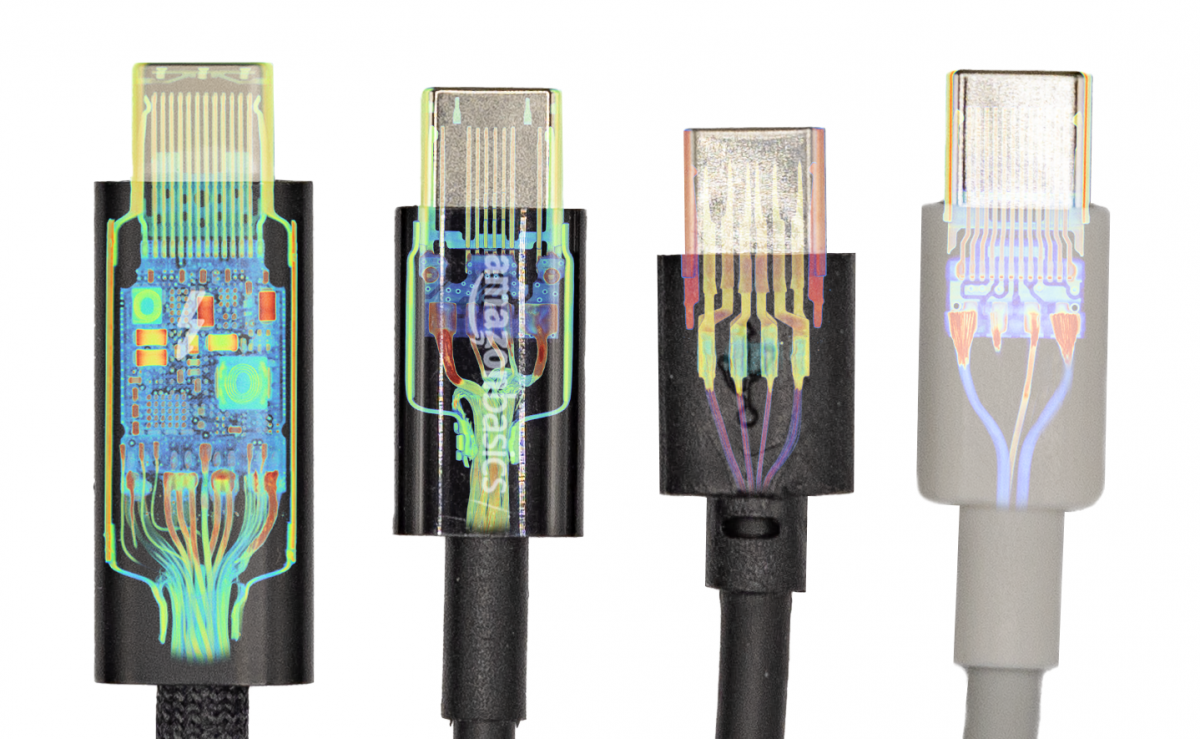
One feature that may be indicated by this symbol is USB Power Delivery, or USB PD. This standard allows power delivery to be negotiated with the connected device: the system adjusts the voltage and current according to its needs. This approach is designed to provide a device with the power it needs to charge, rather than supplying the same amount regardless of what is connected. However, USB PD support on a port should be confirmed in the laptop’s specifications.
The modern version of USB Power Delivery can provide up to 240 W of power. This limit may be relevant not only for smartphones and tablets, but also for some powerful laptops, monitors, and other energy-intensive devices. This is a characteristic of the standard, not a promise that every laptop with a battery symbol can deliver that much power. Actual support depends on the specific port and device, so the figure of 240 W cannot automatically be applied to every model.
USB PD can also support bidirectional power transfer. In other words, a laptop can not only receive power through a compatible port, but also supply power to connected gadgets. For example, you can use the computer’s battery to charge wireless headphones, a smartwatch, or a smartphone. This feature makes the port useful not only for connecting a laptop to a power source, but also for charging accessories. However, the direction of power transfer and support for the feature depend on the specifications of the specific devices.
Why the icon doesn’t guarantee the same features
Some manufacturers provide power through USB when the computer is turned off or in sleep mode. This feature may be called Always On USB. It lets you charge a connected device without the laptop operating normally, if the specific model supports this mode. The feature may have a different name, and the battery icon does not confirm that the port will necessarily remain active after shutdown. Check the laptop’s product description or manual to see whether this mode is supported.
The same icon does not necessarily indicate the same set of features across different manufacturers. On one laptop, it may mark a port that supplies power continuously; on another, a port with USB Power Delivery. Sometimes both features are combined in a single port. So you can’t tell from the icon’s appearance alone exactly which standards are supported, how quickly charging will work, or whether power will remain available when the computer is turned off.
If you need the feature for a specific task, the safest approach is to check the specifications for the particular laptop on the manufacturer’s website or in the user manual. Look for information about USB Power Delivery, whether charging is supported when the computer is off, and the available power modes. This is especially important if you plan to connect a device with high power requirements. The symbol can help you spot a potentially special port, but the documentation should provide the definitive answer about its capabilities.
How to choose a port without draining your laptop
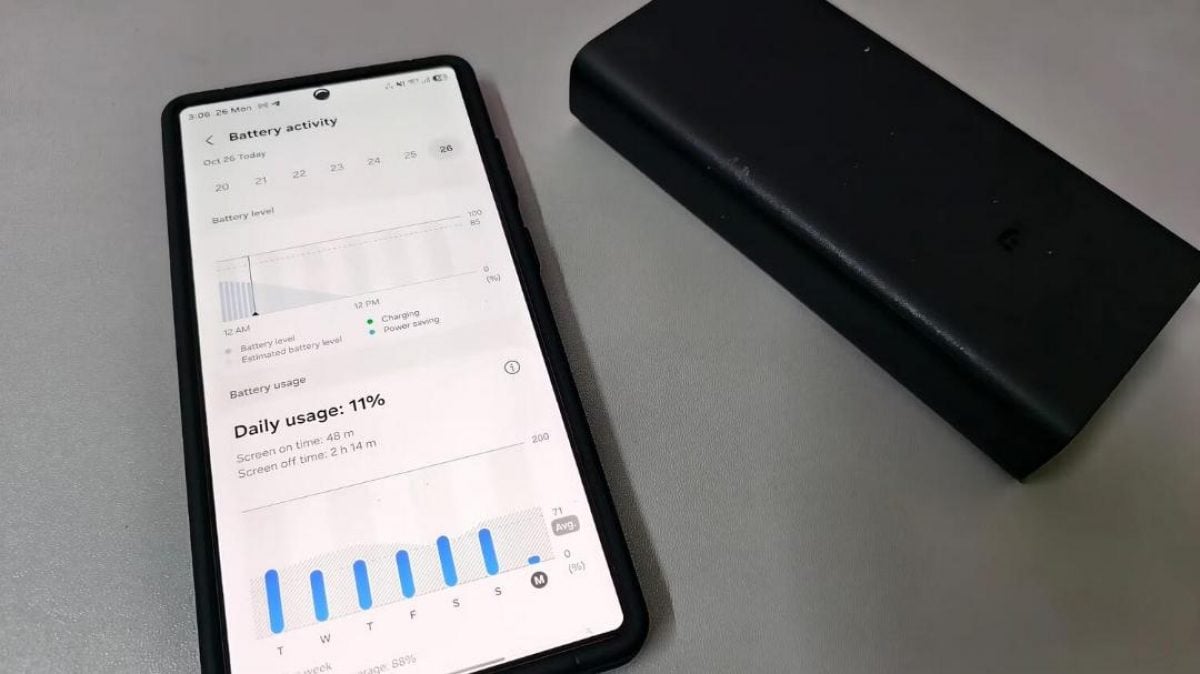
A port with additional power capabilities can be used for smartphones, tablets, power banks, wireless headphones, and other accessories. If the device supports fast charging and the laptop’s port provides suitable power, charging may be noticeably faster than through a regular USB port. Both conditions matter: support from just the phone or the laptop isn’t enough if the other device in the connection doesn’t provide the necessary capabilities.
For a mouse, keyboard, or flash drive connected to transfer files, a dedicated port is usually unnecessary: a standard USB port is sufficient. It makes more sense to reserve the port marked with a battery symbol for situations when you need faster charging or power for an external device. This doesn’t mean you can’t use a standard port for other purposes; it simply helps match the port to tasks that may benefit from its additional features.
There’s a practical caveat when charging while the laptop is off: connected devices continue to draw power from the laptop’s battery. If you leave a phone or accessory connected for a long time, the computer will have less charge left the next time you turn it on. So weigh the convenience of powering a device from your laptop against how much power the laptop itself will have left. To find out whether the port works when the computer is off and what limitations it has, check your model’s documentation.
Source: UNIAN