Why some laptops do not charge to 100%: reasons and solutions
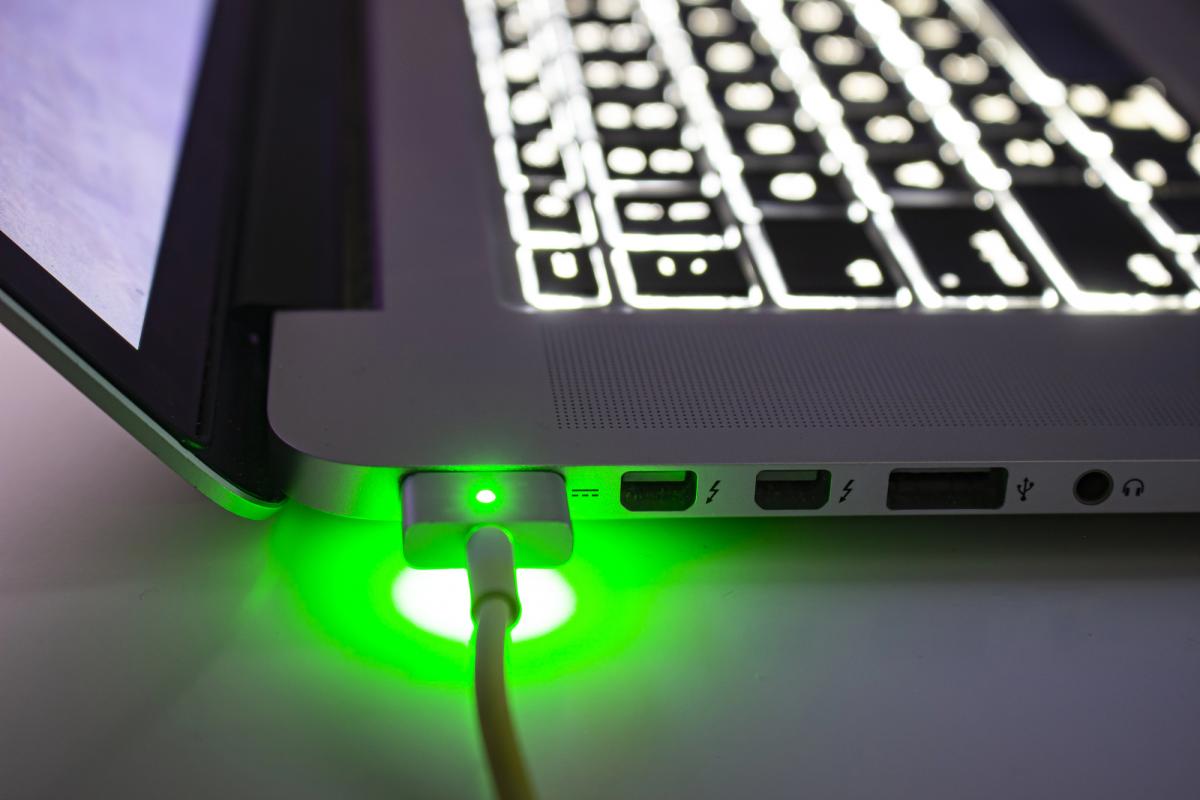
- Some laptops have charge limiting features
- This helps extend battery life
- It is important to check the battery status when there are charging issues
Why some laptops do not charge to 100%
Modern laptops are often equipped with features that limit battery charging to extend its lifespan. For example, the MacBook uses a feature called Optimized Battery Charging, which remembers the device usage schedule and stops charging at 80%. This helps avoid excessive battery wear that can occur with constant charging to 100%. A similar feature exists in Windows called Smart Charging, which also manages the charging process but may result in the device not reaching a full charge.
These battery protection features can be helpful; however, they may cause confusion among users who expect their laptop to always be charged to 100%. It is important to understand that if the laptop does not reach the maximum charge level, it does not always mean that it is faulty. Sometimes, it is simply the normal operation of built-in features aimed at preserving battery health.
To check if the Smart Charging feature is active on a Windows laptop, users can check the battery icon on the taskbar or go to the "Power & battery" settings. If the feature is enabled, this may explain why the device is not charging to 100%. In some cases, users can disable this feature through the manufacturer's proprietary application.
Battery protection features
If the optimized or smart charging features are disabled but the charging issue persists, it is worth diagnosing the battery. The first step may be to restart the device, which can help resolve potential software glitches. It is also important to check the power adapter and port for physical damage that may hinder normal charging.
Users can test the adapter by connecting it to another compatible device. If the charger works but the laptop still does not charge, it is worth checking the battery drivers and updating them if necessary. It is also recommended to check for BIOS and firmware updates that may improve the device's performance.
Calibrating the battery can help in some cases. To do this, you need to charge the laptop to the maximum and leave it plugged in for another two hours. If after this the device continues to unexpectedly shut down or lose charge, it may indicate serious battery wear. In this case, it is advisable to consult the diagnostic tools provided by the manufacturer.
How to check the battery condition
If the battery is noticeably swollen, this is a serious sign, and the use of the device should be stopped immediately. It is important to contact a service center for battery replacement, as this can be dangerous. Manufacturers recommend performing regular checks of the battery condition and cleaning the laptop's fans every three to six months to avoid overheating and extend the device's lifespan.
In conclusion, it is important to remember that it is not always necessary to panic if the laptop does not charge to 100%. This may be part of the normal operation of the system aimed at protecting the battery. However, if charging issues arise, users should know how to diagnose the problem and when to seek help from specialists.
Understanding how battery protection features work can help users better manage their devices. For example, knowing that charging to 100% can accelerate wear may change the approach to using the laptop. Users can adapt their habits to extend battery life, such as avoiding constant charging to the maximum.
What to do when experiencing charging issues
Additionally, laptop manufacturers continue to develop charging management technologies, which may lead to new features in the future. This could include more advanced algorithms that take into account not only usage patterns but also the environmental conditions in which the device operates.
Ultimately, taking care of the battery's condition and understanding how it works can significantly enhance the laptop experience. Users should be attentive to signs of wear and not ignore them to avoid more serious issues in the future.
Thus, if your laptop does not charge to 100%, it may be normal, but it is important to monitor the device's condition and perform diagnostics if necessary. Knowledge of battery protection features and their impact on device performance will help users make more informed decisions.
Source: UNIAN