What to do if a website suddenly stops loading in the browser
Quick problem diagnosis
If the site suddenly stopped opening in the browser, don't start with lengthy settings. When the question arises about what to do if the site suddenly stopped opening in the browser, first understand where the failure is: in the site itself, in the browser, in the device, or in the internet in general. This saves 5–10 minutes and often immediately eliminates half of the questions.
The simplest test: open 2–3 other sites. If they load, but the needed site is silent, the problem is already narrowed down. If nothing opens at all, look at the connection, not the page.
Another quick sign is an error message. 'Cannot access the site', 'connection timed out', 'DNS_PROBE_FINISHED_NXDOMAIN', and similar phrases indicate where to dig. One error message sometimes says more than ten minutes of guessing.
Check the simple things: the address in the browser's address bar, the lock next to it, and if there are any strange characters. A human typo in one letter breaks everything. It can be both funny and frustrating.
Check the internet connection and website availability
Start with Wi‑Fi or a cable. If the network indicator is on, it doesn't necessarily mean that the internet is actually working. Open any news site, email, or search engine to check if there is any connection at all.
If the same site doesn't open on several devices at home or in the office, the problem is no longer with just one laptop. Connect your phone to the mobile network and try again. Often, this kind of test in 1 minute shows that the provider, network, or the site itself is behaving strangely.
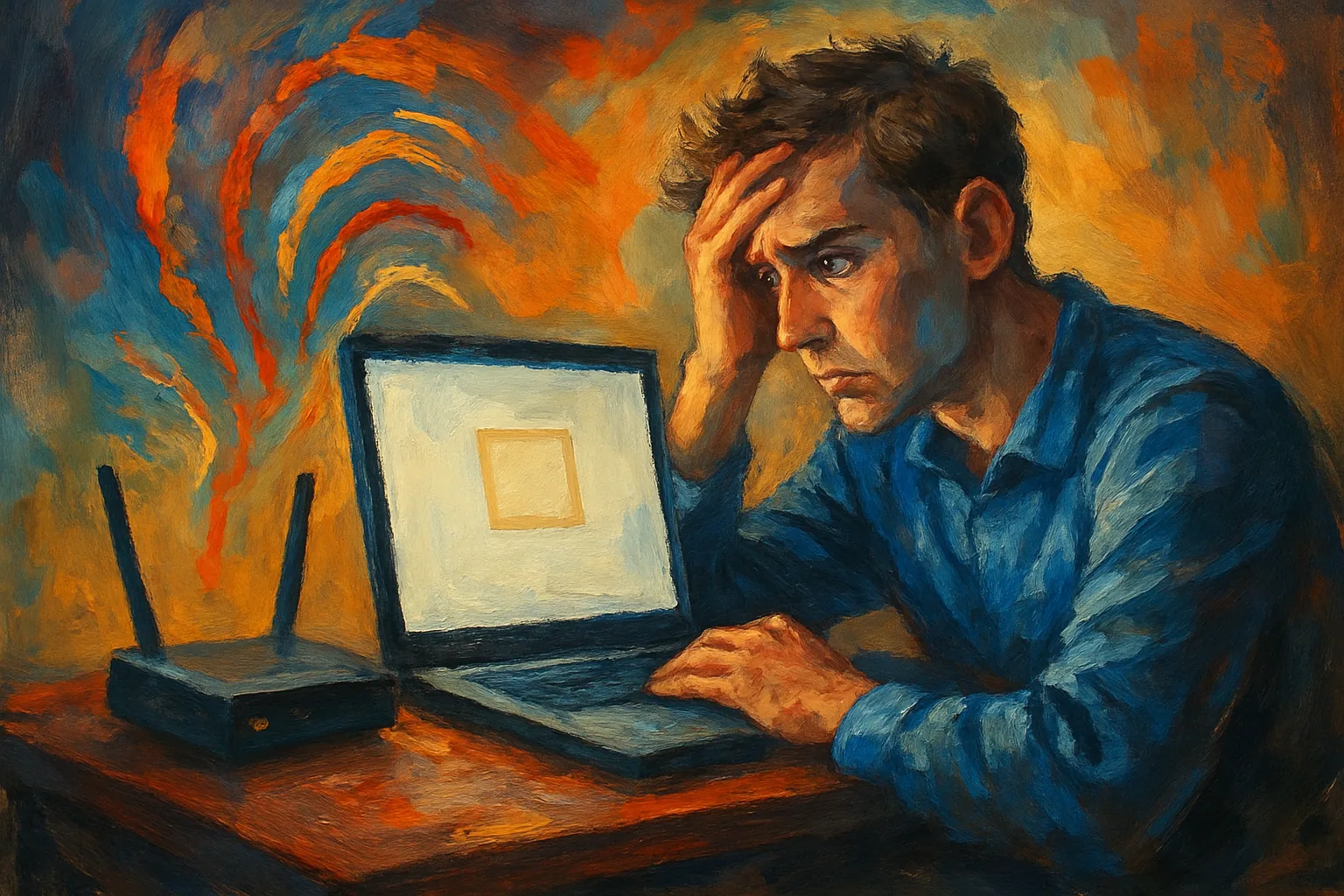
Sometimes a simple router reboot helps. Yes, it sounds like advice from 2008, but it still works. The main thing is to wait 20–30 seconds after turning off the power.
If the site opens via mobile internet but not through home Wi-Fi, it makes sense to check the provider or routing. In such cases, it is useful to compare behavior on the two networks. The same address may behave differently.
When you need to quickly rule out an external failure, use a quick check from another device. A phone, tablet, work computer — any second option will do. If the site opens there, the search area immediately narrows.
Clear the cache, cookies, and restart the browser
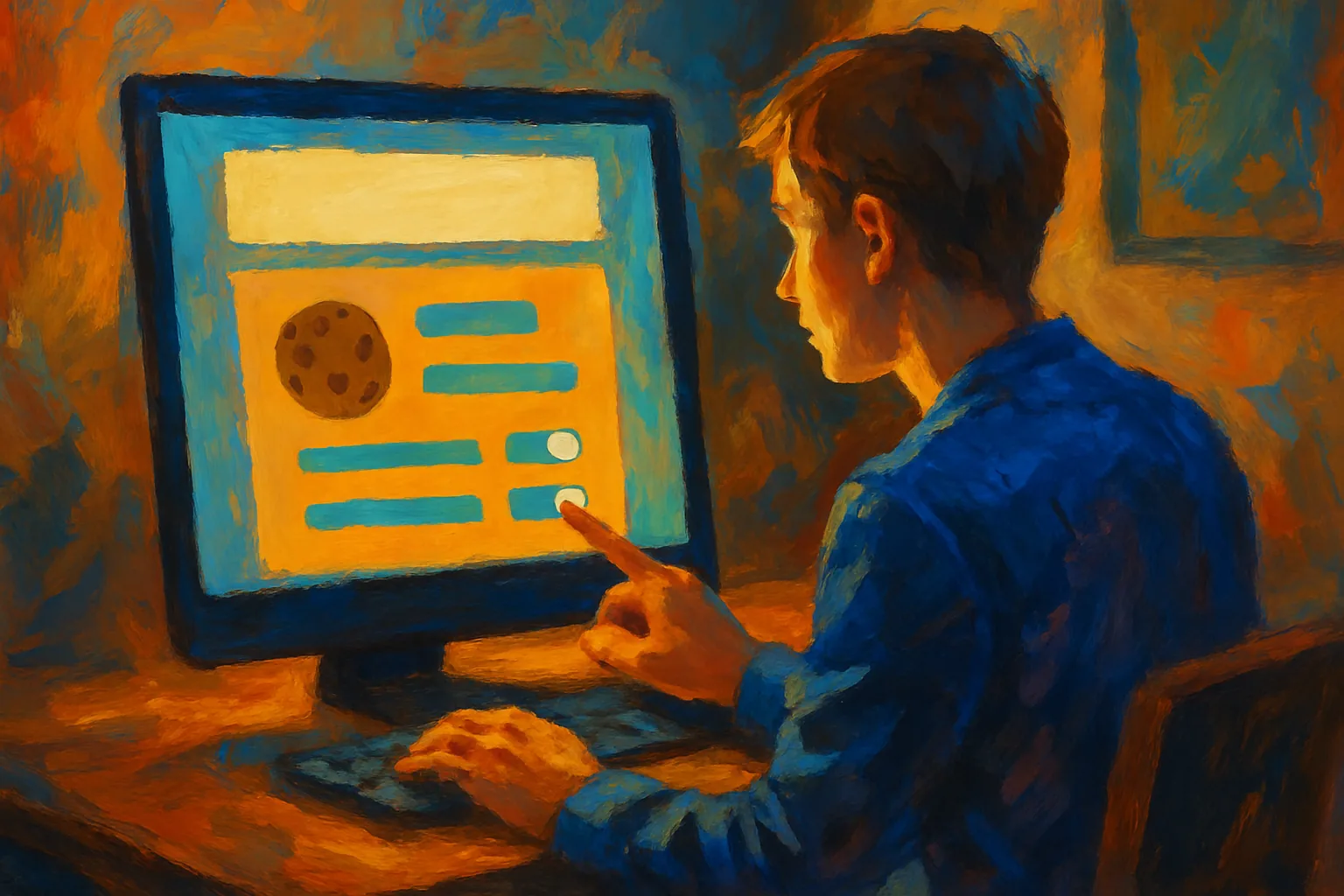
The browser stores temporary data: cache, cookies, session settings. Sometimes they help, and sometimes they interfere with page loading, especially if the site has been updated while the browser continues to pull the old version. Then the page hangs, breaks, or shows a blank screen.
First, completely close the browser, not just minimize the window. Then open it again and try the site once more. A simple browser restart sometimes removes the error without any magic.
If this didn't help, clear the cache and cookies at least for the problematic site. It's not necessary to delete everything if you don't want to log back into all accounts. For starters, data from the last day or 'all time' is enough only in case of a persistent error.
The problem is especially noticeable after a website update. The browser pulls old scripts while the server is already serving the new version. This creates a conflict, and the page doesn't open, even though technically the site is live.
If the site loaded after clearing the cache, don't rush to celebrate without checking. Log back into your account, open 2-3 pages within the site, and see if there are any recurring errors. One successful launch does not guarantee that the problem is completely resolved.
Check the website address and DNS errors
Sometimes, just one letter in the URL can break everything. Instead of the correct address, you might be opening a similar domain, an old link, or a page with an extra slash. Check the address manually, especially if you navigated not from a bookmark, but from an email or messenger.
If the address is correct but the site still won't open, the problem may be with DNS. DNS translates the website name into an IP address, and when this process fails, the browser doesn't know where to go. On the screen, this often looks like a site that is 'not found.'
In such a situation, changing the DNS server can help. Usually, public DNS from Google or Cloudflare is tried. Sometimes the problem goes away immediately after the change, sometimes after rebooting the device or router.
There is one more detail: DNS can be cached not only in the browser but also in the system. So after changing the DNS, give the device a little time, and then try to open the site again. If the site used to open in one network and stopped in another, that's already a good hint to check the DNS.
If you want to quickly check if the problem is with the address, open the site through a search engine and compare the domain in the results. Errors in one letter and fake domains often look almost identical. This is a good reason to remember how to check a site for fraud if the address seems suspicious.
Disable extensions, VPN, and proxy
Browser extensions often interfere with page loading. Ad blockers, script filters, privacy managers, and 'accelerators' sometimes cut necessary elements of the site. As a result, the page opens halfway or doesn't open at all.
Start with the simplest: open the site in extension-free mode, if such a mode exists, or temporarily disable them one by one. First the blocker, then other plugins. This makes it easier to understand what exactly is breaking the loading.
VPNs and proxies can also interfere. The site may block some IP addresses, or the VPN server itself may be unstable. If the site doesn't open through the VPN, turn it off and try directly. Sometimes the reason lies exactly there.
Check one by one, not all at once. If you remove extensions, VPN, and proxy simultaneously, you won't know what worked. Only sequence helps here. And patience, yes.
Sometimes the extension does not completely break the site, but interferes with logging into the account, making payments, or displaying forms. In this case, the page seems alive, but the necessary button does not respond. This is especially noticeable on sites with personal accounts and complex scripts.
If you want to take a break for a minute while the browser is acting strange, you can read jokes about students. Jokes for free. Short. But then make sure to return to checking the extensions.
Check the antivirus, firewall, and system settings
Antivirus and firewalls sometimes block not only threats but also regular websites. This can happen after updating rules, installing a new filter, or having overly strict settings. The site simply does not open on the screen, and the reason lies deeper.
Check the logs or notifications of the security software if they are enabled. There may be a record of blocking a domain, script, or connection. One such log can sometimes explain everything in 30 seconds.
On a work laptop, access to the site may be restricted not by the antivirus but by corporate policy. In that case, the browser is silent, and the network seems to 'see' the site but does not allow it to open. This is a common story in offices, especially if the site is related to files, messengers, or social networks.
If the problem appeared after a system update, check the system certificates, date, and time on the device. Incorrect time can disrupt secure connections just as much as a firewall. This is critical for HTTPS.
Caution is needed: do not turn off protection for too long. A short check is enough to understand whether the antivirus or firewall is blocking the site. After the test, return everything back.
Try another browser or incognito mode
If one browser is acting up, open the site in another. Chrome, Firefox, Edge, Safari — any second option will be useful. This way, you can quickly separate the site issue from the specific profile, extensions, or settings issue.
Incognito mode is useful because it hardly uses old cookies and some extensions. If a site opens in incognito but not in regular mode, the reason is closer to the browser profile rather than the site itself. This is a good sign, albeit not the most convenient.
Sometimes it's enough to create a new browser profile and check the site there. This test is especially useful when the old profile has accumulated many extensions, old logins, and strange settings. It happens more often than it seems.
If you have several browsers, compare the behavior in each. One may load the site, while another crashes on startup. The difference between them often points to a specific plugin, cache, or security policy.
By the way, if after all the tests you just want to switch to something neutral and short, you can check out The human body. Numbers and facts. Interesting. And then return to the browser and continue the check without unnecessary fuss.
When the problem is on the site side and where to turn
If the site does not open for you, your colleagues, and on mobile networks as well, it looks very much like a failure on the site itself. This is often accompanied by errors 502, 503, 504, a blank page, or long loading without results. Here, neither cache nor changing the browser will help.
Another sign is that the site opens sometimes and sometimes it doesn't. Today it is available, in 10 minutes it crashes again. This behavior usually indicates server issues, load problems, or maintenance work.
If there is a service status page, check it. Many projects have a separate section with information about outages and maintenance. When the site is large, they sometimes report recovery earlier than it is noticeable externally.
When there is no status, look for support contacts: email, feedback form, social media, chat. In your message, specify the exact address, time of the error, browser, and the text displayed on the screen. The more specific the description, the faster you will get a response.
It is helpful to take a screenshot of the error. One screenshot saves a lot of back-and-forth communication. If support asks for the version number of your browser or operating system, it will also be useful.
Sometimes the site is unavailable due to maintenance for 10–15 minutes, and sometimes for several hours. In such cases, it is better not to torture the browser endlessly, but simply wait and check again after some time.
If the address raises doubts, first verify the domain and find an independent check. For this, the material will suffice. how to check a website for fraudThis is especially useful when the site suddenly stops opening and behaves too strangely for a normal failure.