How to understand that a site is requesting unnecessary permissions and what to do about it
How to understand that a site is requesting unnecessary permissions and what to do about it
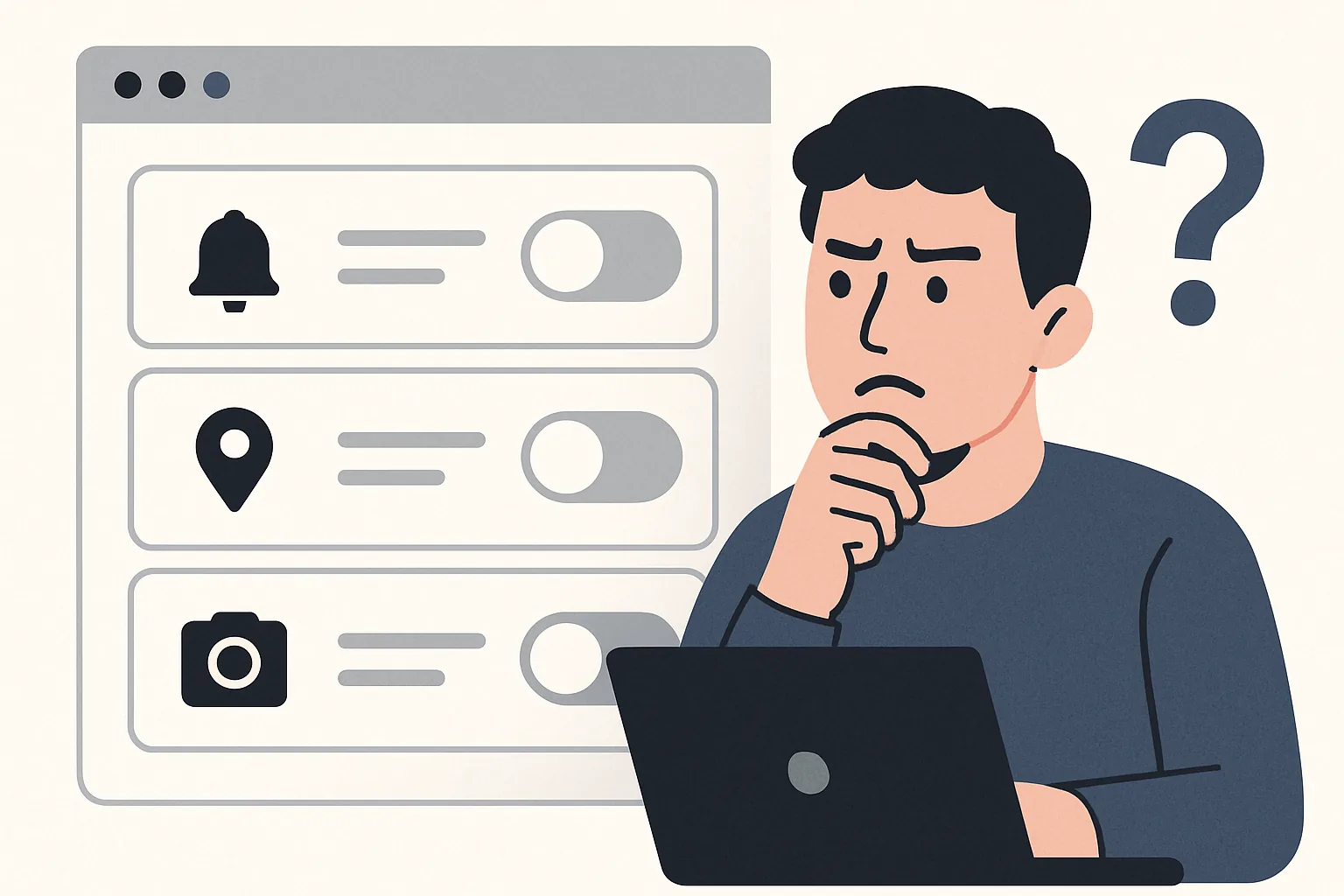
The site may request access to the camera, microphone, geolocation, notifications, or files. The request itself is not dangerous. What is dangerous is when the request is unrelated to what you are currently doing, or when the site demands 3-4 accesses in a row without a clear reason.
Did you see a window asking to 'allow everything'? That's already a reason to slow down. One extra click can sometimes open the door to intrusive notifications, interface substitution, or the collection of unnecessary information about a person. And yes, the question 'how to understand that the site is requesting unnecessary permissions and what to do about it' is better asked before clicking the button, not after.
1. What are 'unnecessary permissions' on a site
Unnecessary permissions are requests that are not needed for the current task of the site. For example, a news site asks for the camera. Or an article about the weather suddenly requires the microphone. This is strange right from the first step.
There is a simple rule: if an action can be performed without access to the device, the site should not push such a request upfront. Geolocation is not needed to read text. A microphone is not needed to view a catalog. Access to the phone's photo archive is not needed for a simple feedback form.
A normal request usually explains the reason. Clearly and briefly. If you are presented with a video call service, the camera and microphone make sense. If you are presented with a discount calculator and it asks for notifications and files, it's time to be cautious.
2. How to recognize a suspicious permission request
The first sign is a mismatch with the site's function. When an online store asks for geolocation before selecting a city, it’s not necessarily malicious. But when a recipe or text site asks for the camera, the logic breaks down. The less connection there is between the action and the request, the higher the risk.
The second sign is an early request. A window appears 2 seconds after the page opens, before clicking a button, before entering a form, before selecting a mode. This way, the site does not assist but pressures. Sometimes pop-up windows repeat in a loop until the person clicks 'Allow'.
The third sign is vague wording. 'To improve your experience' explains nothing. 'To show the weather near you' sounds more specific. The accuracy of the text is just as important as the button itself.
There is also a practical guideline. If the site is not shy about asking for several accesses at once, and distracts attention with colorful banners and unnecessary buttons, it’s better to close the tab. A normal service does not create a nerve-wracking race.
By the way, it is sometimes useful to compare the behavior of the site with regular pages on the same resource. If the 'About Us' section suddenly asks for the camera, and the registration form asks for notifications, it's a reason to take a closer look at the address. how to check a website for fraud.
3. What permissions might actually be needed
Notifications are needed when the site sends news, reminders about orders, or messages from chat. But even here, it's appropriate to ask yourself: do you really want to receive them every day? If not, it's better not to grant access in advance.
Geolocation is needed for delivery services, maps, and weather pages tied to the area. The camera is needed for video calls, scanning QR codes, uploading documents via photo. The microphone is for calls, voice input, and recording messages. Files are for uploading images, PDFs, or archives.
There is another nuance: some sites request access not because it is needed now, but because it may be useful later. This is a bad habit. The site should ask only for what is related to the user's action at that moment.
If you open a simple survey and see a request for camera access, it is almost always unnecessary. If you open a service for an online interview and receive a request for the camera, microphone, and notifications, the situation looks normal. The same access can be appropriate or unnecessary — it all depends on the scenario.
4. Step-by-step website check before granting access
Step 1. Read the text of the request. Not just the button. Look for why access is needed, for how long, and for what function. If the explanation takes 2 words and clarifies nothing, that's a bad sign.
Step 2. Look at the website address. Errors in the domain, extra characters, a strange zone instead of the usual one — these are small details, but very telling. Scammers love addresses that almost match the real ones. One letter changes, and a person is already on a phishing page.
Step 3. Match the request with the action. You clicked 'Call' — camera and microphone make sense. You are just reading an article — there are no reasons for device access. This check takes 10 seconds but saves nerves.
Step 4. If you still have doubts, open your browser settings and check what permissions have already been granted to this site. Sometimes the problem is not in the current window, but in old access that the site keeps using over and over. It's better to remove such old access right away.
Step 5. Don't rush. In a hurry, it's easy to click 'Allow' because the window overlaps the content and makes it hard to continue. This is a play on automation. The site relies on habit, not logic.
5. What to do if the site asks for too much
The first action is simple: deny access. In most cases, the site will continue to work at least partially. If it doesn't continue — that's already a hint that the service is built on excessive requests.
The second action — close the page. Do not argue with it. Do not click the 'later', 'allow once', 'confirm' buttons. When the site demands too much, pausing is more beneficial than trying to 'just see what happens next'.
The third action is to clear the website data. Cache, cookies, and local storage can hold traces of old requests and intrusive windows. After clearing, the page often behaves more calmly. If not, then the problem is deeper.
The fourth action — check the browser extensions. Sometimes extra windows are created not by the site itself, but by a questionable extension that replaces pages, inserts ads, and provokes requests. One extra plugin can ruin the entire browser.
The fifth action is to change your password if you entered anything on a suspicious page. Especially if it was a login through email, social network, or bank. Here, hesitation is dangerous. If payment information was entered nearby, it's better to check immediately if the site is leading to a fake form and verify with the material. how to check a website for fraud.
6. How to revoke already granted permissions
Sometimes, a person has already clicked 'Allow', but then noticed strange behavior from the site. This is not the end. Permissions can be revoked. The browser usually has a list of sites and accesses, where camera, microphone, geolocation, and notifications can be disabled separately.
On the phone, there is also a path, although the names of the sections depend on the system and version. Look for site settings, browser app permissions, or the exceptions list. If the site is no longer needed, remove it from the allowed list.
Notifications should be checked first. They often turn into a stream of ads. The camera and microphone should be turned off immediately if the site is not related to video, calls, or recording. The same logic applies to geolocation: if a route is not needed, access is not needed either.
If the site is open in a tab and continues to ask for access, restart the browser. Sometimes this resets the intrusive window. And if the window appears again after the restart, it means the resource or extension is behaving incorrectly.
7. How to protect yourself in the future
Grant access only when it is needed right now. Not earlier. Not 'just in case'. This rule applies to computers, phones, and browsers, where your hand instinctively reaches for the quick button.
Check the address bar. A quick glance can catch a spoof before you click. If the address looks unusual, contains extra words, or a strange combination of characters, it's better not to proceed. You don't need to be a tech expert here.
Use trusted browsers and keep them updated. Updates close old vulnerabilities and resolve some permission issues. With an outdated browser, even a simple website can behave erratically.
It's useful to occasionally clean up the list of granted accesses. Once a month or at least once every few months. It's a boring habit, but it quickly shows which sites you've long forgotten, yet they still want something from you.
If you want to train your attention not only on websites, you can sometimes watch short entertainment materials — for example, jokes about students. Jokes for free. ShortThere is no risk of clicking the wrong thing, and the brain gets a break from pop-ups. Sometimes this is more beneficial than another questionable click.
8. When to be cautious and seek help
If the site asks for 4–5 permissions in a row, and after refusal starts redirecting to new pages, this is already a bad scenario. If constant notifications, new tabs, or subscriptions appear after visiting a page, don't hesitate. Such signs resemble phishing or an intrusive advertising scheme.
Another alarming signal is if the site requires repeated access after each page refresh, even though it only needs one permission functionally. Or it requires login through an account and then asks for the camera and files without a clear connection. It's time to stop and check the device.
If after interacting with the site passwords start disappearing, foreign notifications appear, or unfamiliar pages open, consult a specialist. This is no longer just a one-button issue. Sometimes the problem lies in an extension, sometimes in the browser, and sometimes deeper.
For additional verification, you can refer to materials on safety and online habits. Even a simple pause of 30 seconds can sometimes save you from a serious mistake. And yes, if a website behaves like a pushy salesperson, it shouldn't be trusted just because the page looks neat.
The most reliable rule here is short: if the request is not related to your action, do not grant access. If the request is repeated without reason, close the page. If something has already been issued, revoke permission immediately. And don't forget to look at the address — it often says more than any promises from the site.