How to check a website for viruses on a phone
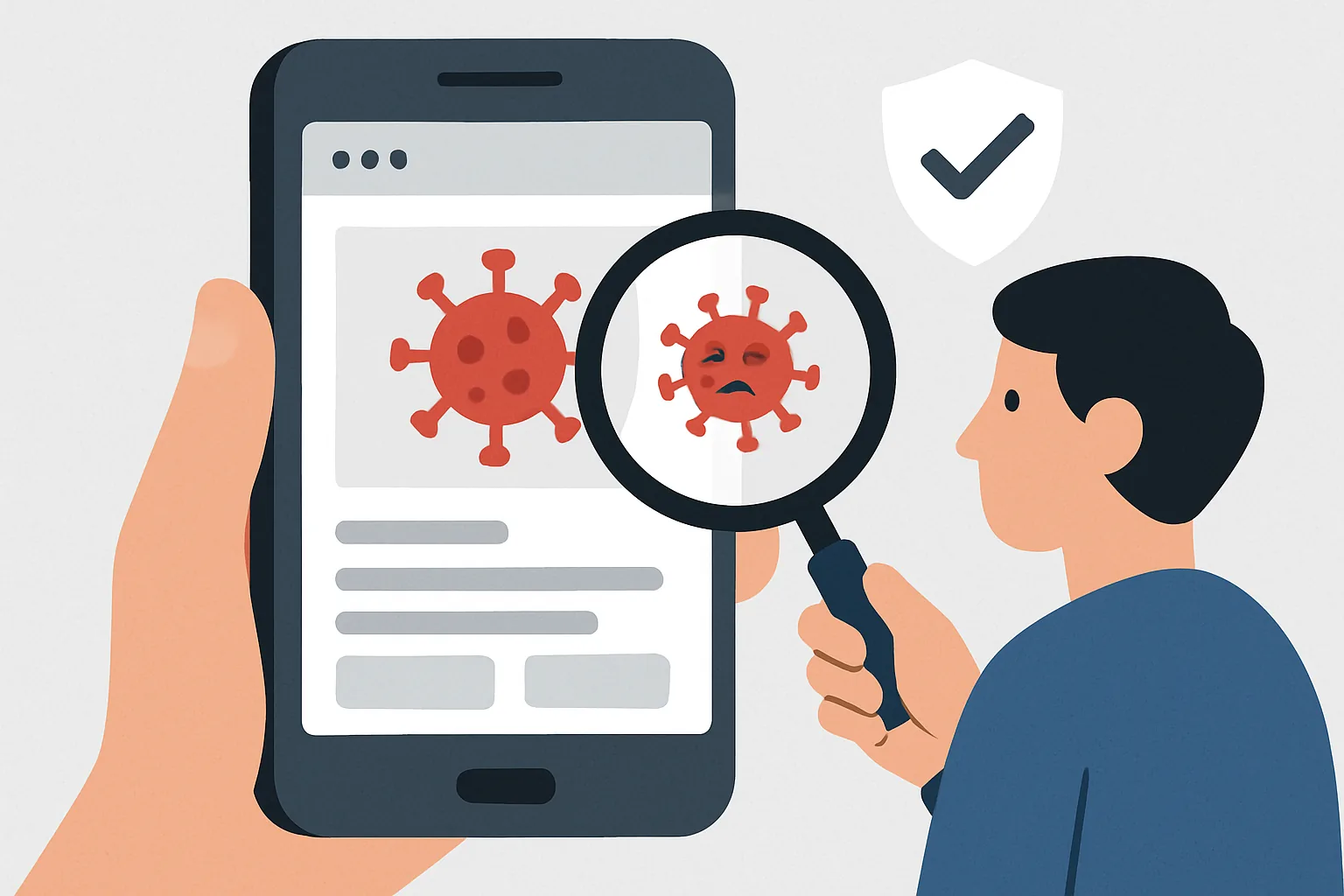
What does it mean to 'check a website for viruses' on a phone?
When talking about checking a website for viruses, it usually refers not to the phone itself, but to the page you are about to open. But the line here is thin. A malicious site may try to trick you into installing a fake app, steal your password, subscribe your device to paid services, or simply flood your browser with so much advertising that closing the tab becomes an adventure in itself.
On smartphones, the danger is often underestimated: the screen is small, the address bar is hidden, and trust in a link from a messenger or social network arises almost automatically. Meanwhile, even just viewing a page can lead to trouble if the site uses phishing forms, substitutes content, or opens a chain of redirects. Therefore, website security is important not only for those who download something but also for those who are 'just browsing'. If you don't know how to check a website for viruses on your phone, start with the address and behavior of the page: this is the quickest way to notice a problem.
Be especially cautious if the page urgently asks you to confirm your data, show a notification from the browser, install an update, or open a file not from the app store. For Android devices, a separate risk is associated with APK files: they are not always malicious objects in themselves, but this is often how unwanted programs are distributed. If this topic is new to you, it is useful to also look at the general guide to checking a website for viruses — it helps to understand the logic of the process without unnecessary technical confusion.
Signs that a website may be dangerous
A dangerous website rarely announces itself directly. Usually, it tries to look convincing, while alarming signals are hidden in the details. Here’s what to look out for first.
- Intrusive pop-up windows that prevent you from reading the page calmly.
- Redirects to new sites without your involvement.
- The offer to urgently download the APK, "update the browser" or install "protection".
- Browser warnings about suspicious or dangerous resources.
- Strange address: extra characters, letter substitutions, long chains of subdomains.
- Certificate error messages or clearly incorrect HTTPS connection.
- Permission requests unrelated to the page content: access to notifications, geolocation, camera, contacts.
There are also less obvious signs. For example, a site may look like a copy of a well-known service but differ by one letter in the domain. Or it may load too slowly, with a chain of redirects, as if someone is trying to lead you to the desired page in a less than honest way. Sometimes, a page may not pose an obvious threat but aggressively pushes you to proceed further — to download, register, or make a payment. In such cases, it's better not to rush.
Step-by-step virus check of the site on the phone
Checking a site for viruses on the phone does not require complex tools. What matters is the sequence and the habit of not succumbing to the pressure of the page. Here is a convenient order of actions.
- Open the link in a browser you trust, not in the messenger's built-in viewer.
- Immediately check the address: domain, protocol, extra characters, unusual endings.
- Evaluate the page's behavior: does it automatically redirect to another site?
- Pay attention to browser warnings and system messages.
- If you have any doubts, copy the URL and run it through an online check.
- Do not enter usernames, passwords, card details, and document numbers until you are sure of the resource's reliability.
- If the site behaves suspiciously, just close the tab.
For phones, it is especially useful to think in terms of 'look first, then tap'. It's basic, but haste often becomes the problem. One wrong tap — and instead of the desired article, you are already on a page with a 'win', 'update', or a wonderful 'Allow' button. In such situations, it's better to stop. The internet isn't going anywhere.
If you want to further verify how to recognize traps at the interface and page behavior level, the material on hidden subscriptions on the site will be useful. It clearly shows why caution is needed even where everything seems harmless at first glance.
How to use online services to check a website for viruses
Online services help quickly check a website for viruses via a link, without installing anything on your phone. Usually, the principle is simple: you paste the page address into the check field, and the service compares it with threat databases, reputation data, and technical signs of suspicious activity.
What is important to consider when reading the result? First, you should not take any negative signal as a final verdict. Sometimes a website is blocked due to a temporary error, sometimes due to the compromise of a single page rather than the entire domain. Second, you should not relax if the service found nothing: the absence of alerts in one report does not guarantee absolute safety. It is just another layer of verification.
Red flags are usually considered:
- mention of phishing, malicious scripts, or fake login forms;
- reports of infected downloads;
- suspicious number of redirects;
- notes on unusual domain activity;
- user complaints or reputation warnings.
Typically, such services only require you to enter the URL, wait for the analysis, and check for warning labels. If the interface shows the domain history, a list of findings, or a screenshot of the page, it is especially useful: you can understand what specifically raised the system's alarm. But if the result raises doubts, it's better to double-check the link from another source rather than rely on a single panel.
Sometimes it is useful to compare not only the reputation of the page but also its meaning: if the site promises incredible benefits, instant discounts, or access to 'exclusive content', it is worth remembering that such promises are rarely generosity, more often a bait. In this sense, common sense works just as well as any automated check.
How to assess a website's security before visiting
It's best to check the website before you open it. A few simple but very practical habits can help with this.
The first is HTTPS and the padlock icon. The presence of a padlock does not make a website secure by itself, but its absence in 2026 already looks strange. If the browser warns of a certificate issue, that's a reason to stop and double-check the address.
Second - the domain. Make sure there are no letter substitutions, extra hyphens, strange prefixes, or long chains of subdomains in the address. Scammers love to disguise themselves as well-known services and rely on a quick glance from the user.
Third - the site's reputation. Searching by name, reviews, mentions on forums and news pages sometimes provide more information than any automatic filter. If a site is often associated with intrusive advertising, content substitution, or dubious subscriptions, this is an important sign.
Fourth - contacts and privacy policy. A normal project usually has clear ways to get in touch, a page with data processing rules, and a clear description of who is behind the resource. If a site requires data but does not provide any information about itself, this is a bad exchange.
Fifth - short links and redirects. Shortened URLs are convenient, but they hide the final address. On a phone, this is especially inconvenient: one click can lead through several intermediate pages. Such links should only be opened when you understand who sent them and why they were sent to you.
What to do if the site is already open on your phone
If the page is already open and raises doubts, do not panic. The main thing is not to continue interacting with it.
Immediately close the tab if you see attempts to redirect, requests to install a file, or suspicious pop-ups. Do not click on the buttons 'Allow', 'Continue', 'Download', and especially 'Install' if you are not sure what is happening.
If you managed to download something, do not open the file. It is better to delete it immediately and check where it came from. After that, you should clear the browser data: history, cache, and cookies. This helps remove some traces of the unwanted page and reduce the risk of reopening through autofill.
Check the app permissions separately. Sometimes the site tries to convince the user to grant access to notifications or open system permissions through the browser. If you accidentally confirmed something, go to the settings and revoke it.
And of course, run an antivirus or built-in scanner on the device. On a phone, it's not a panacea, but a useful second opinion. If the browser, system, or device protection shows an additional warning, it should be taken seriously.
If you are specifically interested in the practical side of checking pages and infections, you can compare this material with how to check a website for viruses — the logic is presented in a more general form and complements the mobile scenario well.
How to protect your phone and avoid malicious websites again
Prevention is almost always cheaper and calmer than dealing with the consequences. A few habits significantly reduce the risk.
- Regularly update your system and browser.
- Keep the pop-up blocker enabled.
- Use the built-in browser protection and secure DNS if it suits your device.
- Do not click on links from random SMS and emails without verifying the sender.
- Be cautious when opening links from messengers, even if they were sent by a friend: the account may have been hacked.
- Do not install applications outside of official stores unless absolutely necessary.
- Periodically check the permissions of installed programs and remove unnecessary ones.
Many problems start with small things: you allowed notifications once, agreed to 'quick confirmation' once, skipped a strange address once. Then the chain repeats. Therefore, it is useful to develop a small ritual: before opening a suspicious link, pause for a few seconds and ask yourself where it came from and why it was sent to you. Sometimes that's enough to avoid trouble.
There is another practical point: do not store all passwords in the browser unnecessarily and do not rely on autofill as your last line of defense. Convenience is convenient only until you find yourself on a fake login form. And yes, a phone is also a computer, just in pocket format.
Brief checklist before opening the link
Below is a short reminder that is convenient to keep in mind before opening a website on your phone.
| Check the address | Look for typos, letter substitutions, and extra characters. |
| Look at HTTPS | There is a lock, but if there is a certificate error, it's better not to continue. |
| Evaluate the page behavior | Redirects, pop-ups, and forced downloads are a bad sign. |
| Do not enter data immediately | First, check the site's reputation and the page's content. |
| Use online verification | If in doubt, run the URL through an analysis service. |
| Close the suspicious tab | Do not argue with a page that behaves intrusively. |
| Check your phone after the incident | Remove the excess, clear the browser, and run the scanner. |
In short, checking a website for viruses on your phone is not magic and not a separate complicated procedure. It is a set of careful habits: look at the address, notice strange behavior, run the link through a service if necessary, and do not rush with personal data. In practice, this is what often saves you. And, importantly, it saves time — this is one of those cases where caution works faster than curiosity.